Clockology App Tips: Getting the Most from Your Watch Faces
You have downloaded Clockology and installed a few faces from Zadigg. Now what? These power-user tips will help you get the most from the app and your growing watch face collection.
Organize with Favorites
As your collection grows, finding the right face quickly becomes important. Clockology lets you mark faces as favorites, creating a shortlist of your most-used designs. We recommend keeping your top five to seven faces in favorites for quick switching. To favorite a face, long-press on it in the library and tap the star icon. Your favorites appear at the top of the library for instant access.
Master the Sync Process
The most common frustration with Clockology is sync failures between iPhone and Apple Watch. Here are proven tips for reliable syncing. First, make sure both devices are on the same Wi-Fi network, though Bluetooth is the primary communication channel. Second, open Clockology on your Apple Watch before initiating the sync from your iPhone. Third, keep both devices close together — within arm's reach. If a sync fails, close Clockology on both devices, reopen on the watch first, then on the phone, and try again.
Battery Optimization
Since Clockology runs as an active app on your watch, it uses more battery than native faces. To maximize battery life, reduce the watch's screen brightness by one or two notches, disable the always-on display when you do not need it, and consider turning off background app refresh for apps you do not use frequently. Most users report getting through a full day with 20 to 30 percent battery remaining, which is perfectly adequate for daily use.
Complications Setup
Many faces from Zadigg support Clockology complications, which display real data on the face — weather, date, activity rings, heart rate, and more. To configure complications, open the face in Clockology on your iPhone and look for complication slots. Tap each slot to choose what data it displays. Not all faces support complications, so check the product description before purchasing if this feature is important to you.
Face Switching Shortcuts
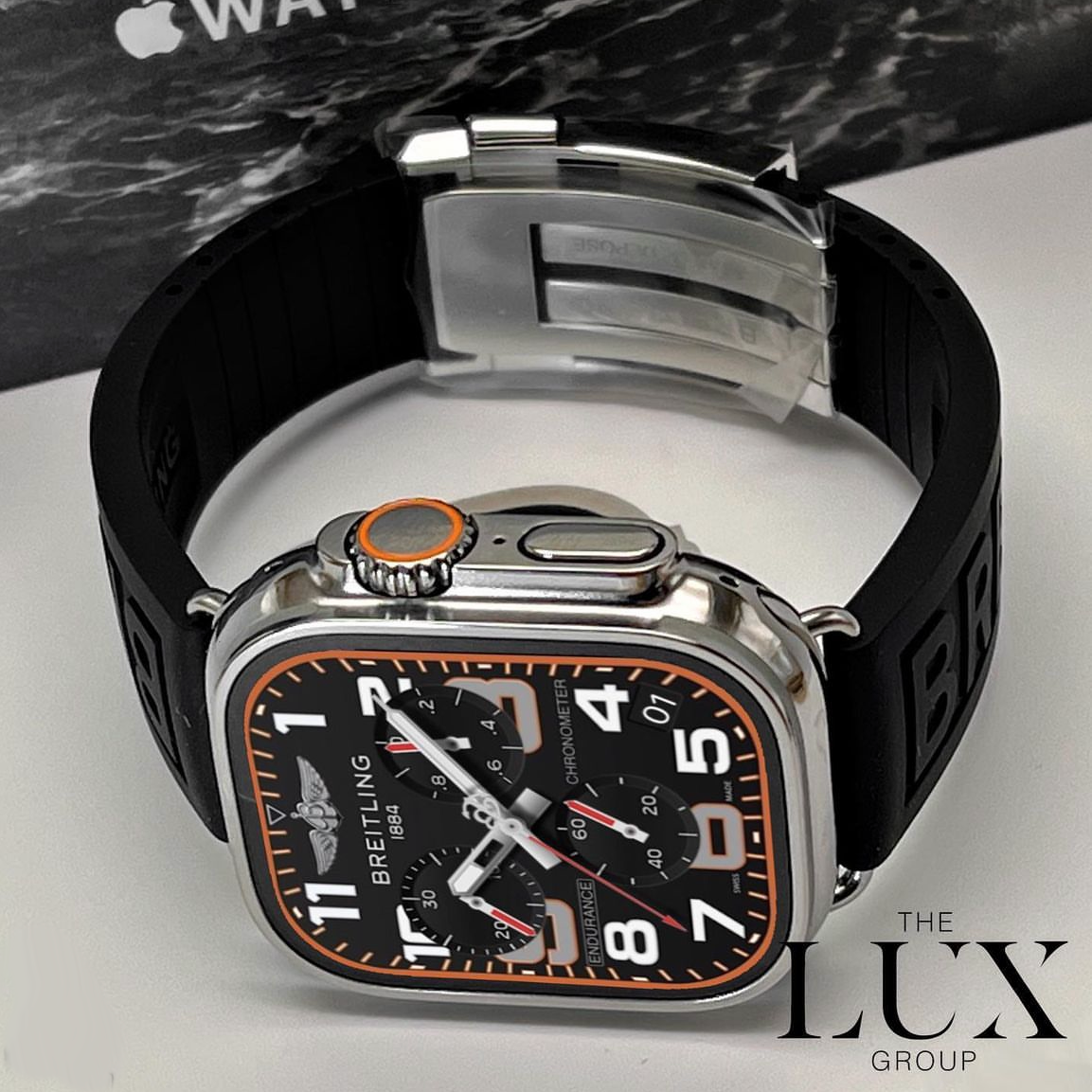
You can create Siri Shortcuts to switch between Clockology faces with a voice command. Set up shortcuts for your most common scenarios: "Set my work face" could activate an IWC, while "Set my gym face" could switch to a Breitling Endurance Pro. This hands-free switching makes the multi-face lifestyle seamless and practical.
Keeping Faces Updated
Occasionally, face designers release updated versions with bug fixes or improved designs. Re-download faces from your Zadigg order confirmation email to get the latest version. Each purchase includes lifetime access to the download link, so you can always get the most current file.
Troubleshooting Quick Reference
- Face not displaying: Make sure Clockology is the active app on your watch.
- Sync failing: Restart both devices and try again with both apps freshly opened.
- Black screen: Ensure the face file is not corrupted by re-downloading from your order email.
- Battery drain: Check that background app refresh is disabled for non-essential apps.
- Complications not showing: Verify that the face supports complications and that you have granted Clockology the necessary permissions.
With these tips, you will be running Clockology like a pro and enjoying your watch face collection to its fullest potential.