How to Install Clockology Watch Faces on Your Apple Watch
Custom watch faces have transformed the Apple Watch experience, and Clockology is the app that makes it all possible. Whether you just purchased your first luxury-inspired face from Zadigg or you are exploring customization for the first time, this guide walks you through every step of the installation process.
What Is Clockology?
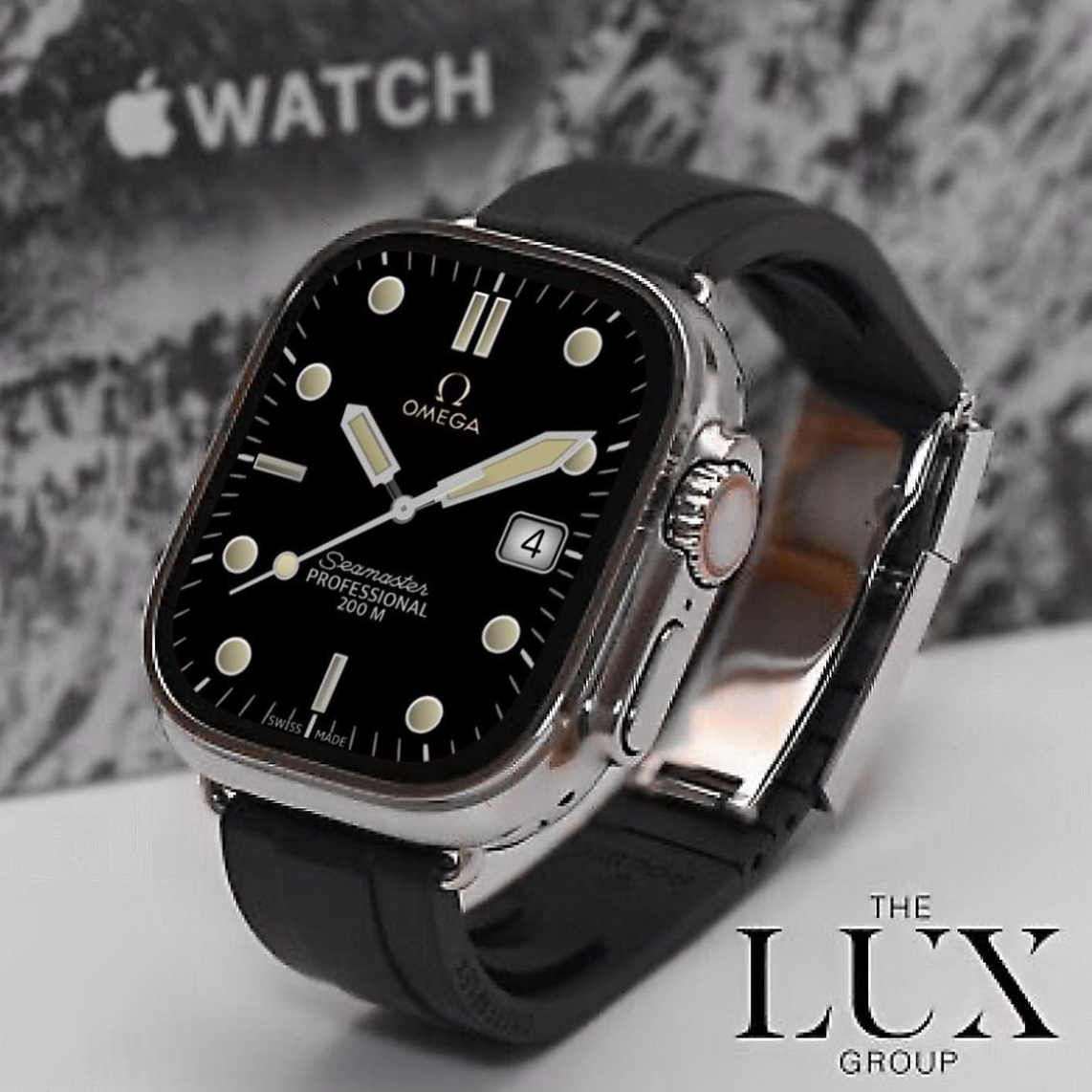
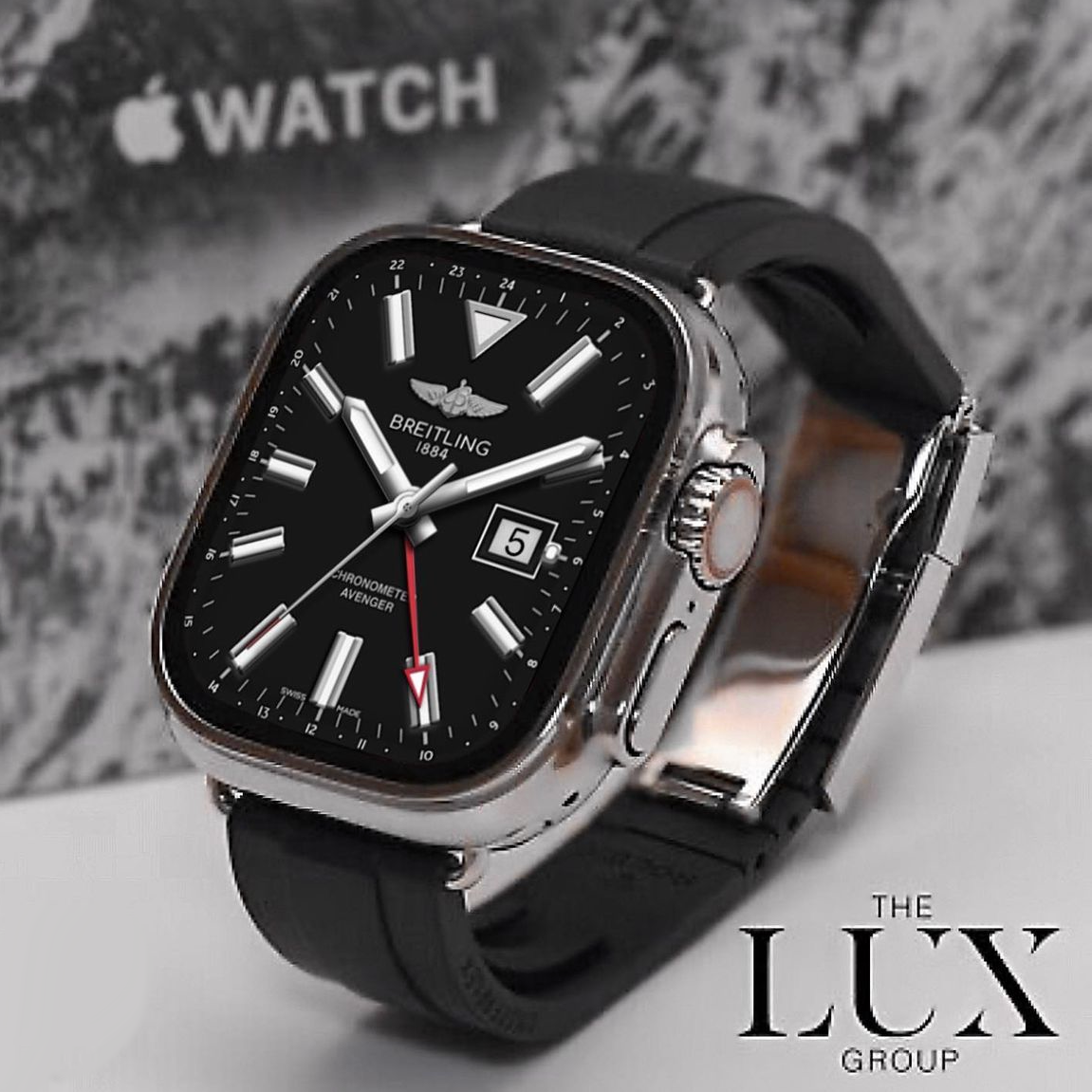
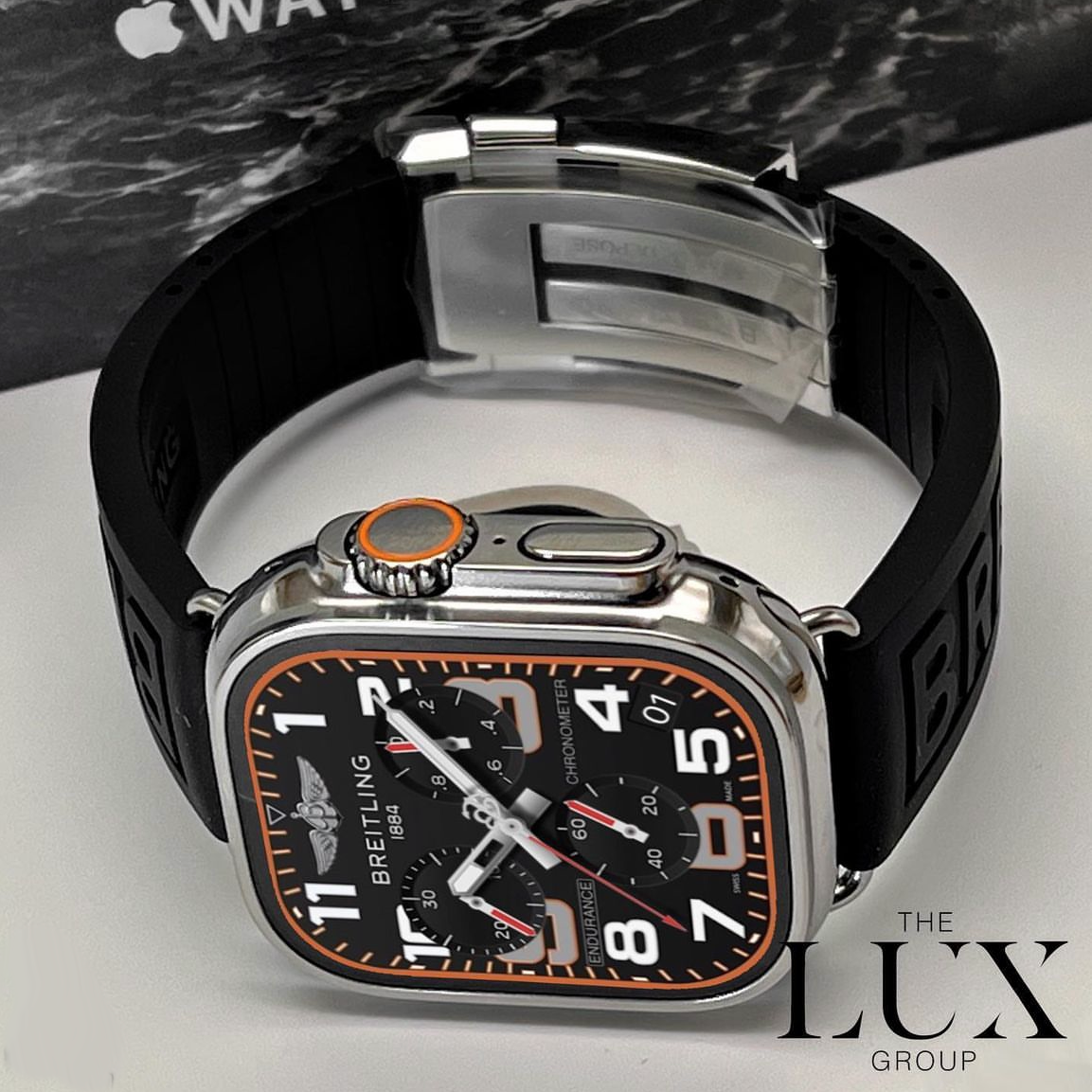
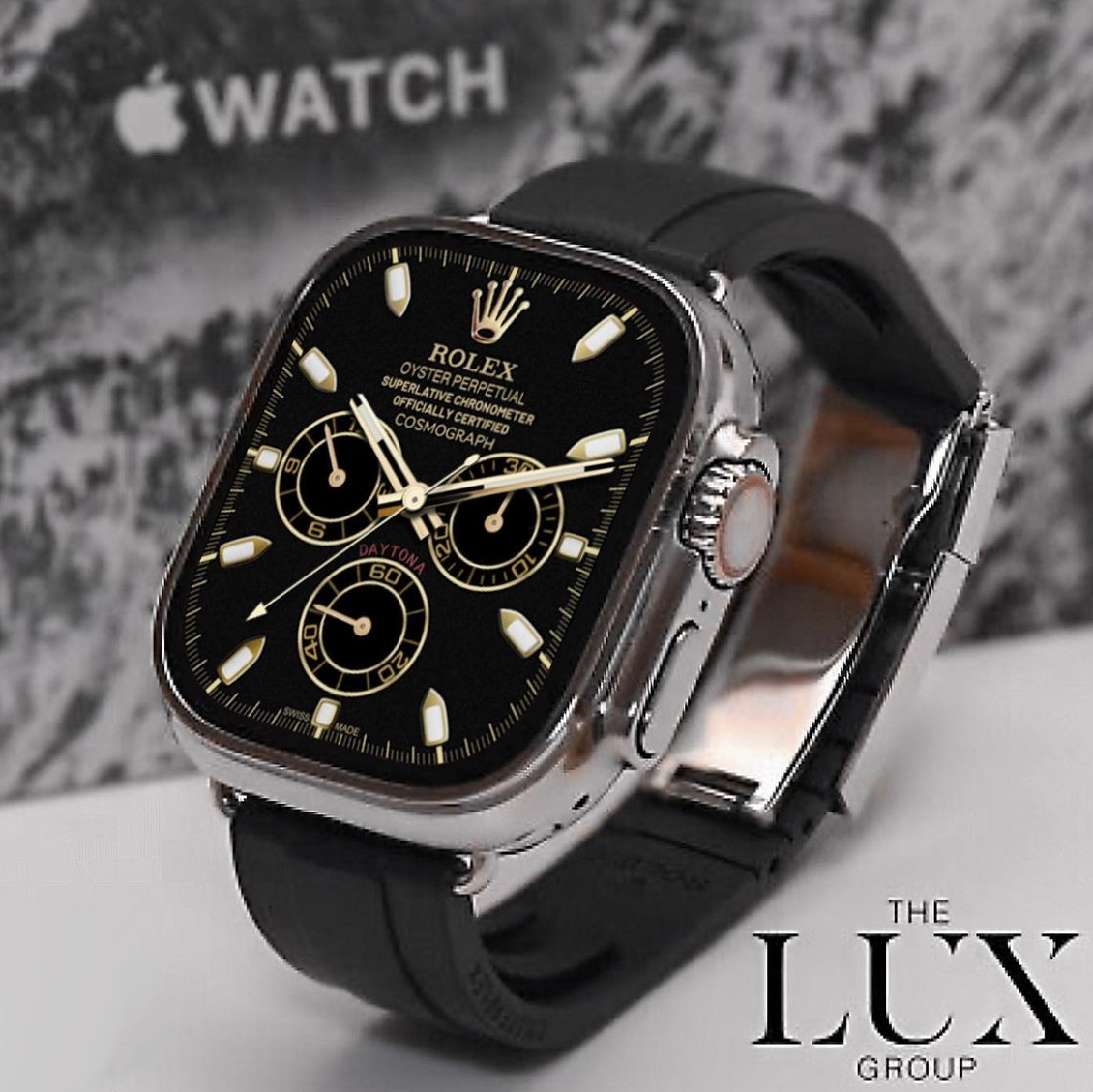
Clockology is a free app available on the Apple App Store that allows you to install beautifully designed custom watch faces on your Apple Watch. Unlike the default faces that ship with watchOS, Clockology faces can replicate the look of iconic luxury timepieces from brands like Rolex, Breitling, and Audemars Piguet with stunning accuracy.
Step 1: Download Clockology
Open the App Store on both your iPhone and Apple Watch. Search for "Clockology" and install the free app on both devices. Make sure both devices are running the latest versions of iOS and watchOS for the best compatibility. The app needs to be installed on your watch as well — you can do this from the Watch app on your iPhone or directly from the App Store on the watch itself.
Step 2: Download Your Watch Face File
After purchasing a watch face from Zadigg, you will receive a download link via email. Tap the link on your iPhone to download the .clock file. If prompted, choose to open the file with Clockology. The face will automatically appear in your Clockology library on your iPhone.
Step 3: Sync to Your Apple Watch
Open the Clockology app on your iPhone and locate the face you just downloaded. Tap the share or sync button to send it to your Apple Watch. Make sure your watch is nearby, unlocked, and connected via Bluetooth. The transfer usually takes just a few seconds.
Step 4: Set as Your Active Face
On your Apple Watch, open the Clockology app. You should see your new face in the library. Tap it to preview, then tap "Set as Face" to activate it. The Clockology app needs to remain as the active app on your watch for the custom face to display. You can use the "Always On" feature if your Apple Watch supports it.
Troubleshooting Tips
- If the face does not sync, restart both your iPhone and Apple Watch and try again.
- Ensure Bluetooth is enabled on both devices.
- Check that Clockology has the necessary permissions in your iPhone Settings.
- For Apple Watch Ultra users, make sure you select the correct face size during download — 49mm faces are optimized for the Ultra display.
That is all there is to it. With Clockology and Zadigg, you can wear the look of a luxury timepiece on your Apple Watch in minutes. Browse our full collection to find your next favorite face.