How to Create the Ultimate Apple Watch Setup
Your Apple Watch is capable of far more than most people realize. With the right setup — the right faces, bands, settings, and apps — it becomes an indispensable extension of your personal style and daily routine. Here is how to build the ultimate Apple Watch experience from the ground up.
Step 1: Choose Your Core Faces
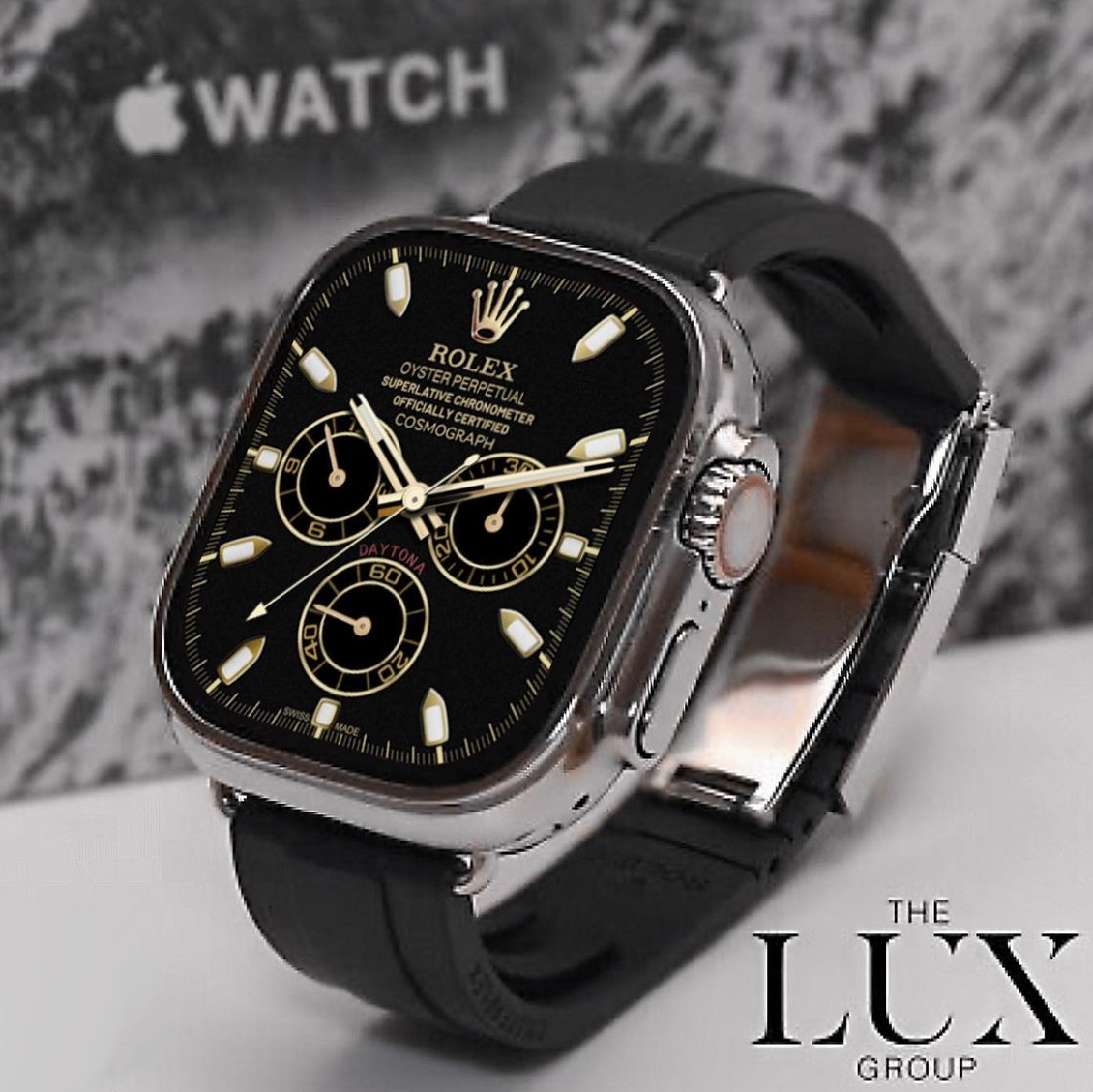
Start by selecting five to seven faces that cover your key scenarios. You need at minimum a professional face for work, a casual face for weekends, a sporty face for workouts, and a dressy face for formal occasions. From the Zadigg collection, a solid starting rotation might include an IWC for work, a Breitling Navitimer for weekends, an Endurance Pro for fitness, and a Rolex for formal events. Install all of them in Clockology so you can switch instantly.
Step 2: Invest in Multiple Bands
A single band limits your styling options. Build a small collection. A black sport band is your everyday default. A trail loop or rugged band for outdoor activities. A leather link or Milanese loop for dress occasions. A braided solo loop for comfort during long days. Match your band to your face — the combination creates a cohesive look that elevates the entire package.
Step 3: Optimize Your Settings
Dial in the settings that improve daily usability. Set the always-on display to your preference — it works beautifully with Clockology faces but does consume more battery. Adjust brightness to match your typical environment. Configure Do Not Disturb schedules to prevent notifications during meetings and sleep. Set up Water Lock for swim and shower situations. These small adjustments make a meaningful difference in daily comfort.
Step 4: Configure Complications
Complications transform your watch face from decorative to functional. The most useful complications for daily wear are weather, calendar events, activity rings, and battery level. If your Clockology face supports complications, configure them to display the information you check most frequently. Think about what you actually look at your watch for throughout the day and set your complications accordingly.
Step 5: Set Up Siri Shortcuts
Create voice shortcuts for face switching. "Hey Siri, work mode" activates your professional face. "Hey Siri, gym time" switches to your sport face. This hands-free approach to face management is genuinely convenient and makes the multi-face lifestyle seamless.
Step 6: Curate Your Notifications
Nothing ruins a beautiful watch face like a constant barrage of notification banners. Be ruthless about which apps can send notifications to your watch. Keep only the essentials — messages, phone calls, calendar alerts, and a handful of must-have apps. Everything else can wait until you check your phone.
Step 7: Health and Fitness Setup
Configure the Health app to track your priorities. Set daily move, exercise, and stand goals that are challenging but achievable. Enable fall detection and crash detection for safety. Set up a medical ID with your emergency contacts and health information. These features run in the background regardless of which face you are using.
Step 8: Regular Maintenance
Keep your Apple Watch in top shape with regular maintenance. Update watchOS promptly for security and feature improvements. Clean your watch and bands weekly with a damp cloth. Restart your watch weekly to clear memory and refresh performance. Periodically review and delete unused apps and watch faces to keep storage tidy.
With these steps complete, you will have an Apple Watch setup that is personalized, efficient, stylish, and a genuine pleasure to wear every day.